Two problems in one question
"Search inside all my PDFs" is two tasks in one. The first is indexing: reading the text of every file once and keeping it in a form that can be queried instantly, so that each search doesn't re-read everything. The second is having text to index at all. A PDF from a scanner or a phone camera holds pictures of pages and no text. No indexer can search what isn't there. OCR solves that second problem and we cover it in how to make a scanned PDF searchable. Here we deal with the first problem but keep the second in view, because in most large PDF collections the majority of the files are scans.
The search built into your operating system
Spotlight on macOS
Spotlight indexes the text of the PDFs in your home folder and finds files that contain a word. It is fast and needs no setup. It tells you which file matches but not which page, it shows no context around the hit and it sees nothing in a scanned PDF that lacks a text layer. Search a folder of 800 scans for a surname and you get no results. The name isn't missing. The scans are pictures.
Windows Search
Much the same with more configuration. Windows only indexes file contents for the locations and file types you enable in Indexing Options. PDF indexing also depends on a PDF filter being installed, which some PDF readers add and others don't. When it works you get file names without pages or snippets. Scans without text stay invisible.
Adobe Acrobat's advanced search
Acrobat can search every PDF in a folder (Edit → Advanced Search, then choose a location). You get a tree of files and hits and clicking a hit opens the page. It only works on scans once Acrobat's own OCR has run on each file, either one by one or as a batch you set up. On a big folder of scans the search is slow because Acrobat opens the files instead of consulting an index. It also needs Acrobat Pro.
Command-line tools
If you're comfortable in a terminal, two tools do a lot with little effort.
pdfgrepsearches PDFs recursively (pdfgrep -r -n "Müller" ./scans) and prints the file and page number. Each search reads every file, which is slow across thousands of them but hard to beat for a one-off question.ripgrep-all(rga) does the same with a cache and can run OCR on images through Tesseract when configured. Setting it up takes some work and the results are still lines of text in a terminal instead of pages you can look at.
Both answer "where does this string occur?" and then leave you to open the file, find the page and check the scan yourself. For a researcher who needs to see the original, that is the slow half of the job.
What a search across scans should give you
We tried all of the routes above on our own archive. What we wanted from a search across scans came down to this.
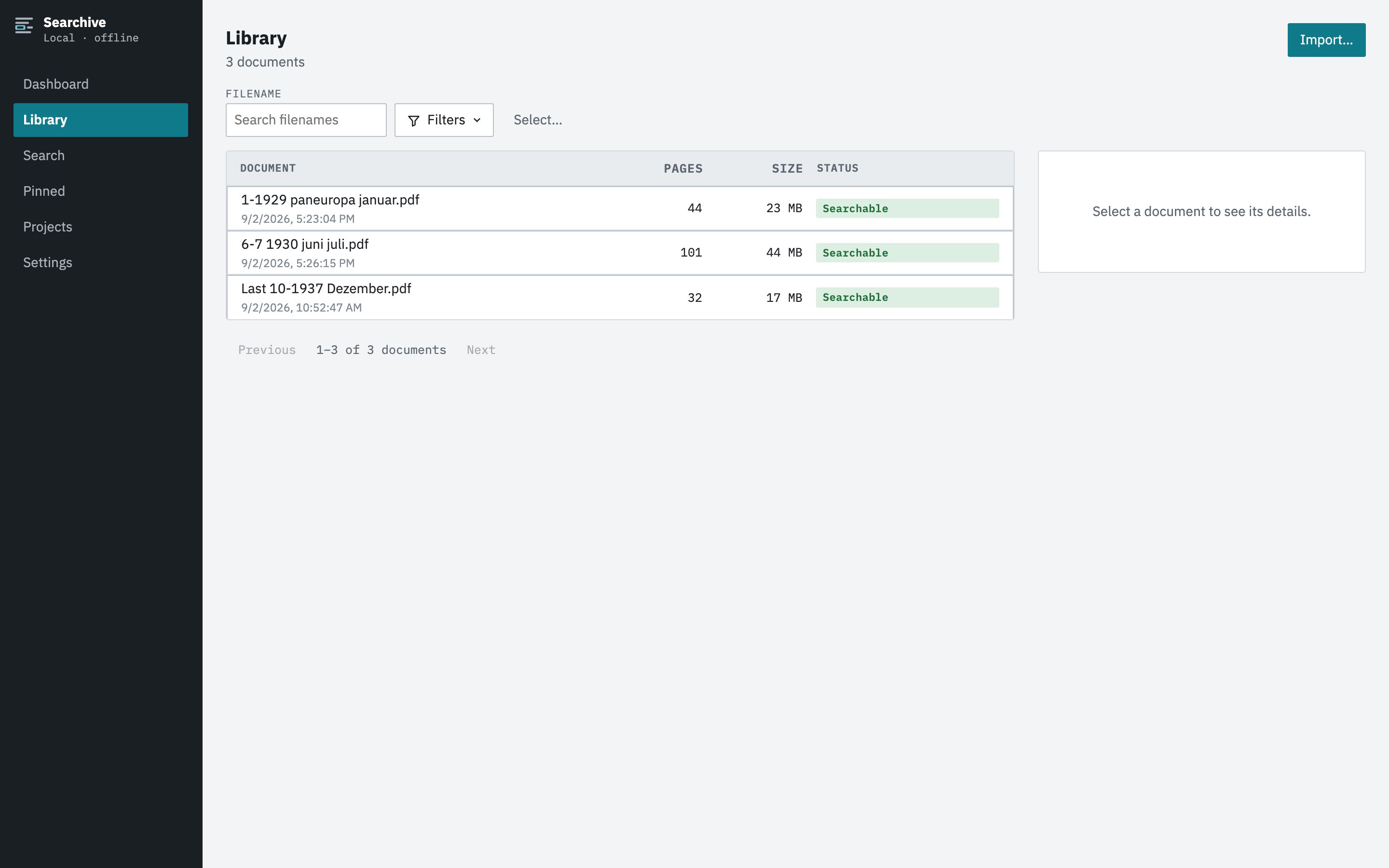
- OCR that runs by itself. You import a folder and every document that needs recognition gets it in the right language in the background, with a visible status. Documents that already have text are indexed as they are.
- An index instead of a re-read. Search has to answer in a fraction of a second across a hundred thousand pages, so the text must be read once and stored.
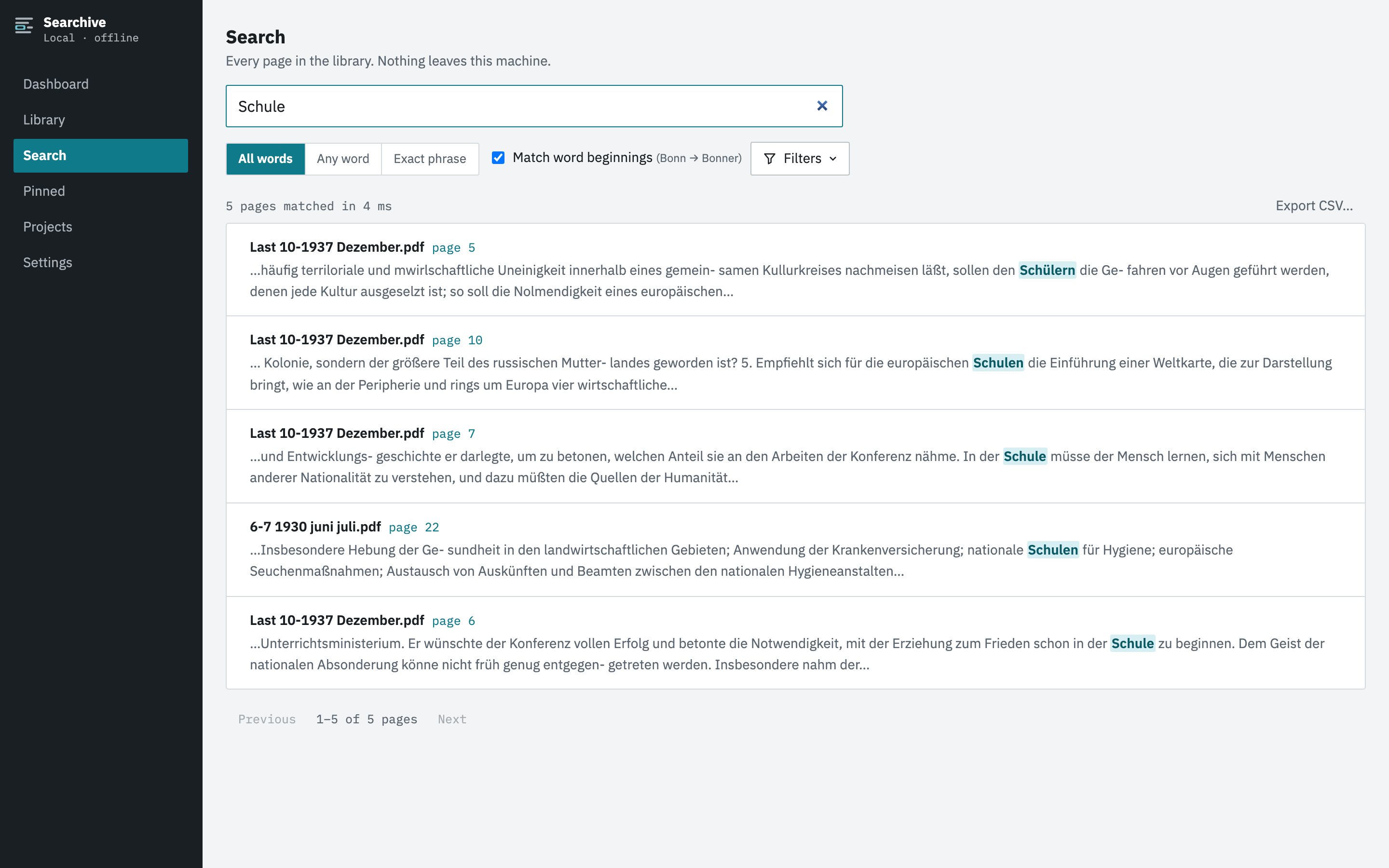
- Results at page level with context: document, page number and a snippet with the matched words highlighted, ranked so that a page mentioning the name five times comes first.
- The match on the scan. One click opens the page image with the word highlighted, so you read the original.
- Spelling variants. Historical names and places turn up in three spellings within one box of papers. Searching each spelling separately is the chore that makes people give up.
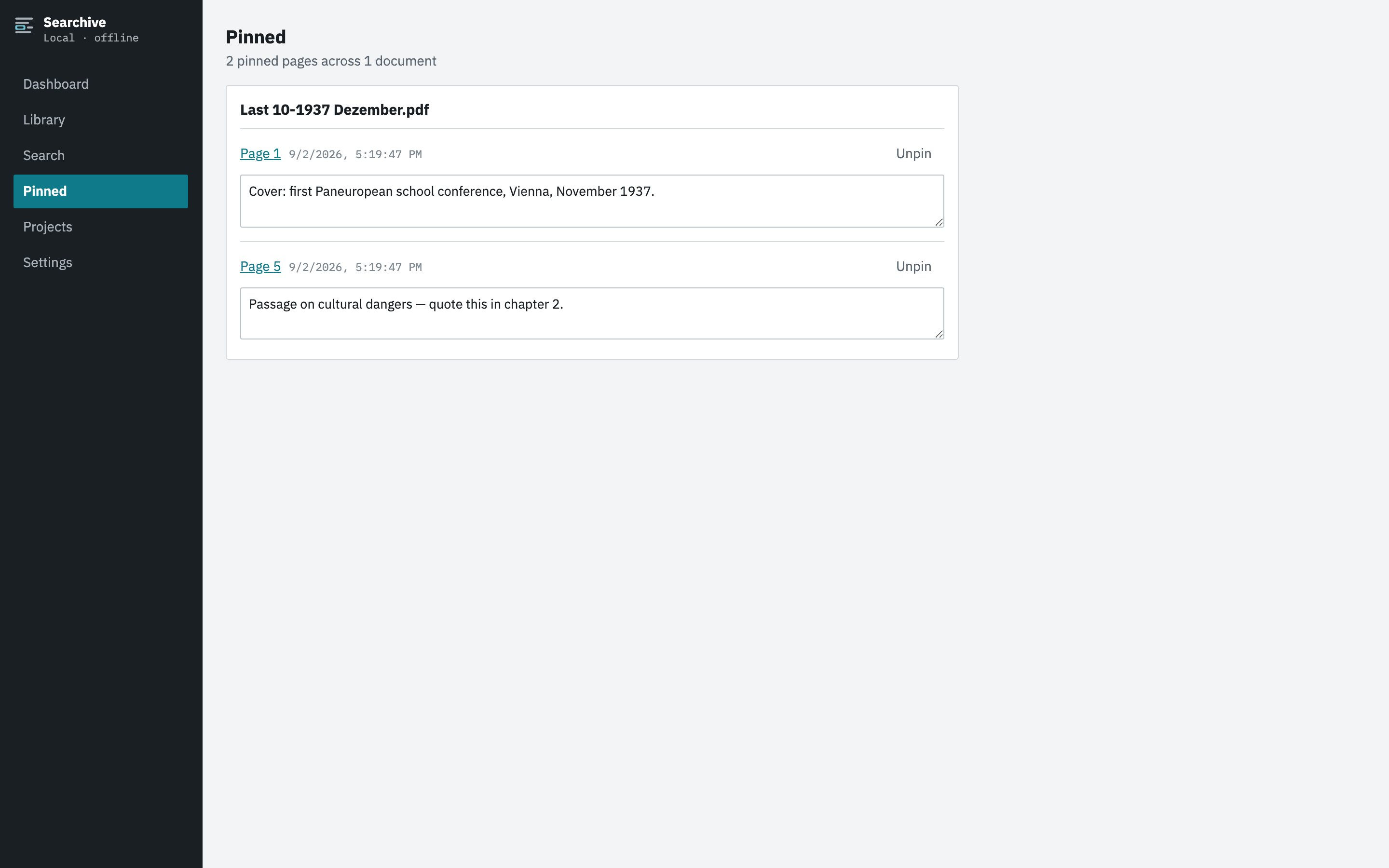
- A way to keep what you find: pin the page, add a note, export the list of results.
That list is what Searchive does. It's a desktop app for macOS and Windows that runs OCR on whole folders of scanned PDFs and photos, indexes them and searches every page from one box. Nothing leaves your computer. It's free for one document and needs no account.
Join the waitlistHow a library search works in Searchive
You import single PDFs, a selection or a whole folder with its subfolders. The app checks each file's content hash, so a scan imported twice is noticed instead of processed twice. For every document that needs OCR you pick one language or several (a German report with French quotations gets deu+fra). The app then works through the queue on its own.
Search is one box with three modes. All words requires every term on the page, which keeps the result count meaningful on a big library. Any word matches a page that contains any of the terms, which is how you search a name in all its spellings at once. Exact phrase matches the words in that order. Accents and apostrophes work the way you type them: l'église finds l'église and d'Annunzio finds d'Annunzio, with or without the curly quote. Results show the document, the page and a snippet with every matched term highlighted, ranked by relevance.
A click on a result opens the scanned page with the match highlighted on the image. Text is selectable and copyable wherever a text layer exists. You can pin a page with a note in your own words and the Pinned screen collects them by document. Any search can be exported as a CSV (file, page, snippet, language) for your notes or a source list.
The index is a local SQLite full-text database. The app is specified and tested for hundreds of documents and well over a hundred thousand pages on an ordinary laptop, with search answering in well under a second. Processing is checkpointed per page, so a crash at page 124 of 350 resumes at page 124.
Frequently asked questions
Can Windows Search or Spotlight search inside PDFs?
Yes, if the PDF has a text layer. Both index the text of PDFs in the folders they cover and return the file, not the page. Scanned PDFs without a text layer stay invisible to them until OCR has been run.
How many PDFs can Searchive search?
It is built and tested for libraries of hundreds of documents and well over a hundred thousand pages on an ordinary laptop. The index is a local SQLite database and search answers in well under a second at that size.
Does it search PDFs that already have text?
Yes. A PDF with a usable text layer is indexed directly without OCR, so a mixed folder of born-digital and scanned documents works in one library.
Can I search for a name spelled several ways?
Use any-word mode and type every spelling you know (Cöln Köln Coeln). A page matches if it contains any of them. All-words mode requires every term and exact-phrase mode matches the words in that order.
Can I get the results out?
Yes. Every search can be exported as a CSV with file, page, snippet and language, up to 5,000 rows, for your notes or a source list.