The camera roll problem
A phone is the scanner most people have with them. Archives allow it, offices tolerate it and it is faster than any flatbed. What you end up with is a folder of files named IMG_4471 to IMG_4890, sorted by date, some showing a whole page and some a detail, from three different documents. Nothing in that folder is searchable and nothing tells you which photo is page 12 of which file.
The fix takes three steps: group the photos that belong to one document, assemble them into one PDF in page order and recognize the text so the PDF can be searched. Most tools do only one of the three.
What people photograph and why it ends up unsearchable
The pattern is the same at very different desks. A genealogist photographs a parish register and a box of letters in a two-hour slot at a regional archive. A junior lawyer photographs a lever-arch file at the other side's office because copying was refused. An accountant photographs a client's shoebox of receipts at the kitchen table. A journalist photographs a file that may not leave the room. In every case the material is printed or typed, matters a great deal and comes home as JPEGs that no search can see into.
Afterwards these people want to type a surname, a plot number, a date or a supplier and be shown the page. The PDF is only a step towards that. A polished scanner app that leaves you with forty separate PDFs and no way to search them has solved the easy half.
Shoot so the OCR can read it
Recognition quality is decided when you press the shutter. A few habits separate pages that read cleanly from pages that don't.
- Fill the frame with the page. Table around the margins is wasted pixels and the letters need them.
- Shoot straight down. A page photographed at an angle has converging lines. Most OCR can correct a small tilt but not perspective.
- Keep the page flat and lit. A curled page throws a shadow across the gutter and the words under it are lost. Hold it flat or weight it down and keep your own shadow off it.
- Take one page per photo in reading order. Then the filename order is the page order and nothing needs sorting later.
- Use JPEG instead of HEIC. On an iPhone choose Settings → Camera → Formats → Most Compatible. Many tools, ours included, can't read HEIC.
Free ways to get from photos to a searchable PDF
Scanner apps on the phone
Adobe Scan, Microsoft Lens, the scanning built into Google Drive and the document mode in the iPhone Notes app all crop, flatten and stitch pages into a PDF. Several offer OCR too. They are convenient on the spot. Two things are worth checking. One is whether the app uploads pages, which several do (Adobe Scan stores scans in Adobe Document Cloud, by its own description). The other is whether the text it produces ends up as a searchable layer in the PDF or stays a copy inside the app. If you're photographing anything confidential, read the app's privacy statement before using its OCR.
img2pdf and OCRmyPDF on the command line
Two open-source tools do the assembly and the recognition offline and without loss. img2pdf wraps the JPEGs into a PDF without re-encoding them and ocrmypdf adds the text layer.
img2pdf IMG_44*.jpg -o letter.pdf
      ocrmypdf --language fra --deskew --rotate-pages letter.pdf letter-searchable.pdf
Searchive does the same thing underneath. With the command line you end up with one searchable file per document and nothing to search across the hundred others.
Desktop PDF editors
Acrobat and similar tools can combine images into a PDF and run OCR on the result. That works for one document and means a lot of manual work for a whole trip's worth.
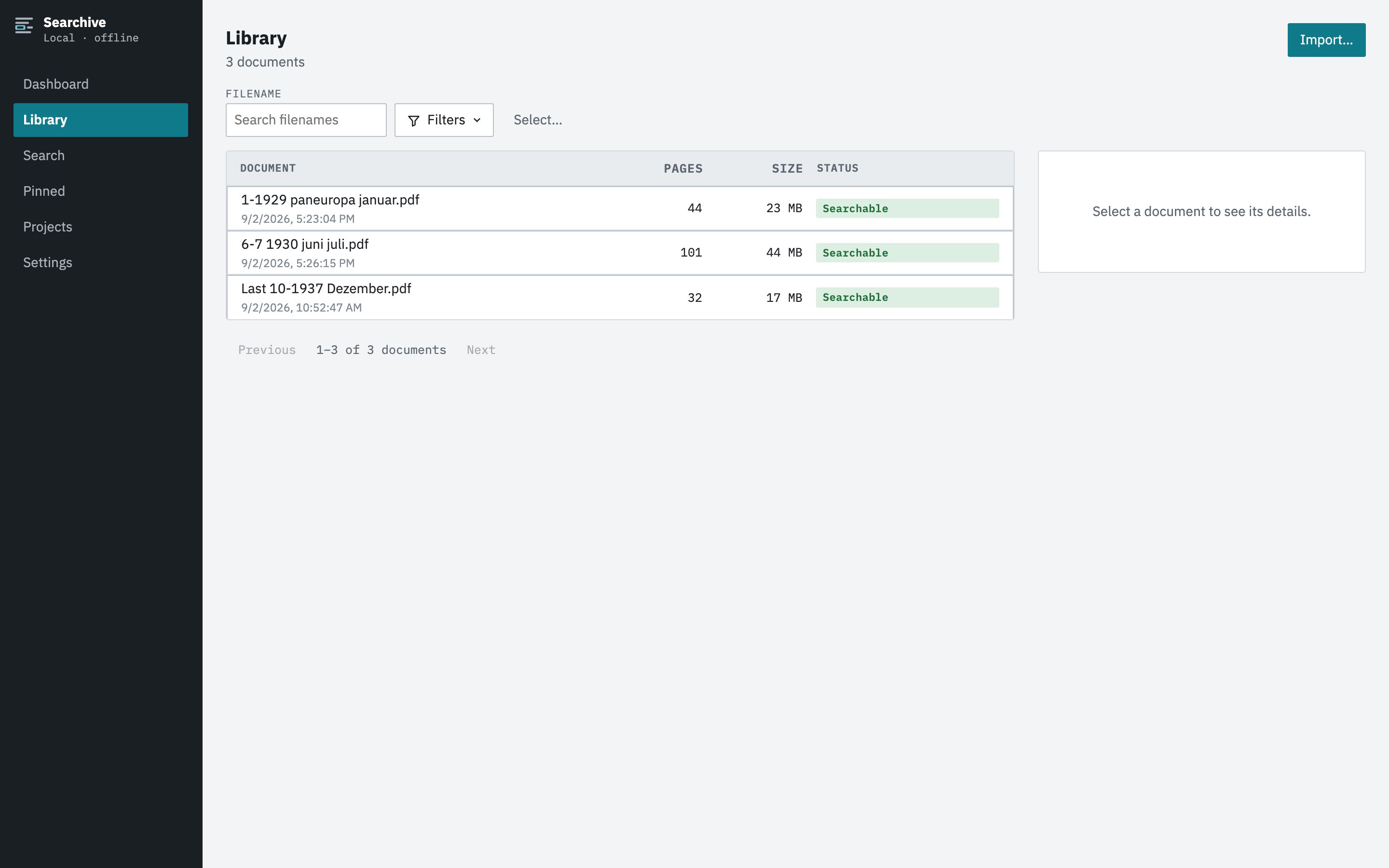
In Searchive a set of photos is imported like anything else. Select the photos, name the document and choose the language. They become one searchable document with the pages in camera order, sitting next to your PDFs in the same library. Nothing is uploaded. It's free for one document and needs no account.
Join the waitlistHow photo import works in Searchive
We added this after the first historian to try the app pointed out that many people only have photos. In an archive you photograph, so a folder of JPEGs is the normal raw material and a tidy PDF is the exception.
- Select the photos. JPEG, PNG, TIFF or WebP, from one folder or a selection. Everything you pick becomes one document, so a 40-page letter is one source instead of forty.
- Name the document and choose the language: German, French, English, Dutch or Italian, with two allowed together.
- The pages assemble themselves. The photos are embedded into a PDF without loss, one photo per page in natural filename order, so IMG_0009 comes before IMG_0010. Your original photos are not modified.
- Recognition and indexing run in the background. Skewed pages are straightened, 90-degree rotations are corrected, every page gets a confidence score and the document shows up in the library with a status you can watch.
- You search it with everything else. A photographed 1890 letter and a scanned 1950 report share one library and answer one search. A click on a result opens the photo with the match highlighted.
Perspective distortion and heavy page curl are not corrected because recognition works from the photo as taken, which is why the shooting habits above matter. Handwriting is not recognized. Everything else in the library applies as usual: you can pin a page with a note, export a search as CSV and keep the whole folder in your own backup.
Frequently asked questions
Which photo formats can Searchive import?
JPEG, PNG, TIFF and WebP. HEIC, the default on recent iPhones, isn't supported yet. Set the camera to "Most Compatible" or export the photos as JPEG first.
In what order do the photos become pages?
In natural filename order, which is the order the camera numbered them: IMG_0009 comes before IMG_0010. Shoot the pages in reading order and the document comes out right without any sorting.
Are my original photos changed?
No. The photos are embedded into a PDF without loss and without re-encoding. That PDF is stored as the original. The files you selected are not touched.
Do I need a scanner app first?
No. Ordinary camera photos work. If you prefer a scanner app for its cropping and flattening, export the result as JPEG or PDF and import that. Check first whether the app uploads your pages for processing.
Does it read handwriting in the photos?
No. Recognition is for printed text. A photographed handwritten letter becomes a document you can view and pin, but its text isn't searchable.